DragLocker
DragLocker

Document Home / Settings

Settings

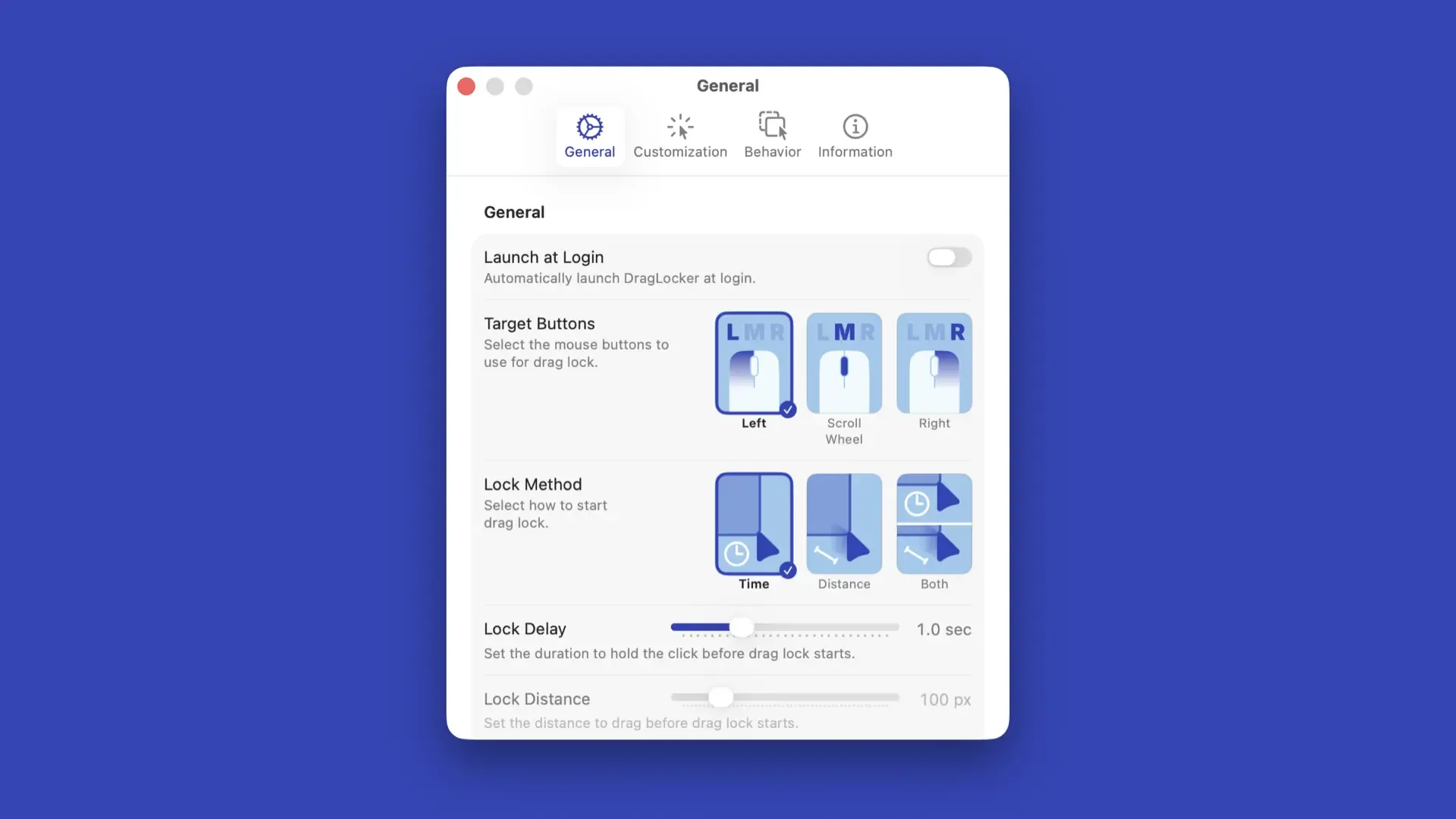
General

General

  • Launch at Login
    • Automatically launch DragLocker at login.
    • Default: Off
  • Target Buttons
    • Select the mouse buttons to use with drag lock.
    • Default: Left
  • Lock Method
    • Select how to start drag lock.
    • Default: Time
  • Lock Delay
    • Set the duration to hold the click before drag lock starts.
    • Default: 1.0 sec
  • Lock Distance
    • Set the distance to drag before drag lock starts.
    • Default: 100 px
  • Unlock All with Esc Key
    • Press the Esc key during a drag lock to unlock all buttons.
    • Default: On

Information
For instructions on how to use drag lock, please refer to "Using Drag Lock" and "Customize Drag Lock Behavior".

Status

  • Drag Lock Monitoring
    • Shows the current status of drag lock monitoring and allows you to toggle it.
  • Toggle Shortcut
    • Set a global shortcut key to toggle drag lock monitoring.
    • Default: ^ (Control) + ⇧ (Shift) + ⌘ (Command) + L
  • Send Notification on Toggle
    • Show a system notification when toggling drag lock.
    • Default: Off

Permissions

  • Accessibility
    • Shows the status of accessibility permissions and allows you to configure them as needed. You must grant permission to use the drag lock feature.
  • Notifications
    • Shows the status of notification permissions and allows you to configure them or send a test notification. You must grant permission to use the notification feature.

App Store Features

  • Don't Ask for Reviews
    • Prevent the app from periodically prompting you to review it on the App Store.
    • Default: Off

Information
This section is displayed only when using the App Store version. For more information on review requests, please refer to "About App Store Review Requests".

Customization

Icon

  • Show Icon Near Pointer
    • Show an icon near the mouse pointer while a drag lock is active.
    • Default: Off
  • Icon Style
    • Choose the style of the icon shown near the mouse pointer during a drag lock.
    • Default: Padlock
  • Size
    • Adjust the display size of the icon.
    • Default: 100%
  • Opacity
    • Adjust the opacity of the icon.
    • Default: 100%
  • X Offset
    • Adjust the horizontal display position of the icon.
    • Default:
      • Padlock: 18
      • Dot: 14
      • Large Ring: -1
      • Focus: -1
      • Custom: 0
      • Traffic Light (Horizontal): 30
      • Traffic Light (Vertical): 22
      • Small Traffic Light (Horizontal): 24
      • Small Traffic Light (Vertical): 20
      • Text (Horizontal): 30
      • Text (Vertical): 20
  • Y Offset
    • Adjust the vertical display position of the icon.
    • Default:
      • Padlock: -1
      • Dot: 0
      • Large Ring: 0
      • Focus: 0
      • Custom: 0
      • Traffic Light (Horizontal): 0
      • Traffic Light (Vertical): 0
      • Small Traffic Light (Horizontal): 0
      • Small Traffic Light (Vertical): 0
      • Text (Horizontal): 0
      • Text (Vertical): 0
  • Animation
    • Choose the animation applied when the icon appears and disappears.
    • Default: Default

Information
For information on customizing the icon, please refer to "Customize Drag Lock Behavior".

Sound

  • Play Sound
    • Play a sound when a drag lock is activated or released.
    • Default: Off
  • Sound Style
    • Choose the sound to play. You can preview sounds by hovering over them.
    • Default: System
  • Sound Volume
    • Adjust the playback volume for custom sounds.
    • Default: 50%
  • Invert Sounds
    • Swap the sounds played when a drag lock is activated and released.
    • Default: Off

Information
For information on customizing sounds, please refer to "Customize Drag Lock Behavior".

Behavior

App Exclusion and Limitation

  • List Mode
    • Specify the mode for the app exclusion and limitation list.
    • Default: Ignore or Exclude
  • App Exclusion and Limitation List
    • Apps added to the list will be excluded or limited according to the list mode. If List Mode is set to "Ignore or Exclude," you can specify whether to ignore or exclude each app.

Information
For more details on how to exclude or limit specific apps, please refer to "Change Drag Lock Settings for Each App".

Ignore or Exclude Specific System Overlays

  • Launchpad
    • Excludes the Launchpad overlay. This setting is only displayed on macOS Sequoia or earlier versions.
    • Default: Off
  • Show Desktop / Mission Control
    • Ignores the Show Desktop and Mission Control overlays.
    • Default: Off
  • Volume/Brightness OSD
    • Excludes the Volume/Brightness OSD overlay.
    • Default: Off

Per-App Behavior

  • Per-App Setting List
    • Allows you to customize settings for each application added to the list.

Information
For more details on how to customize settings for each app, please refer to "Change Drag Lock Settings for Each App".


DragLocker
DragLocker

GitHub Latest Release

GitHub Repo stars

GitHub Downloads (all assets, all releases)

Download on the Mac App Store
Free Download on the GitHub

Copyright ©︎ 2026 Taiga Imaura