

Document Home / Customize Drag Lock Behavior
You can fine-tune drag lock settings from the DragLocker settings, allowing you to configure it to your preference for better usability.
In this section, we will introduce how to customize the overall DragLocker behavior (Global Settings).
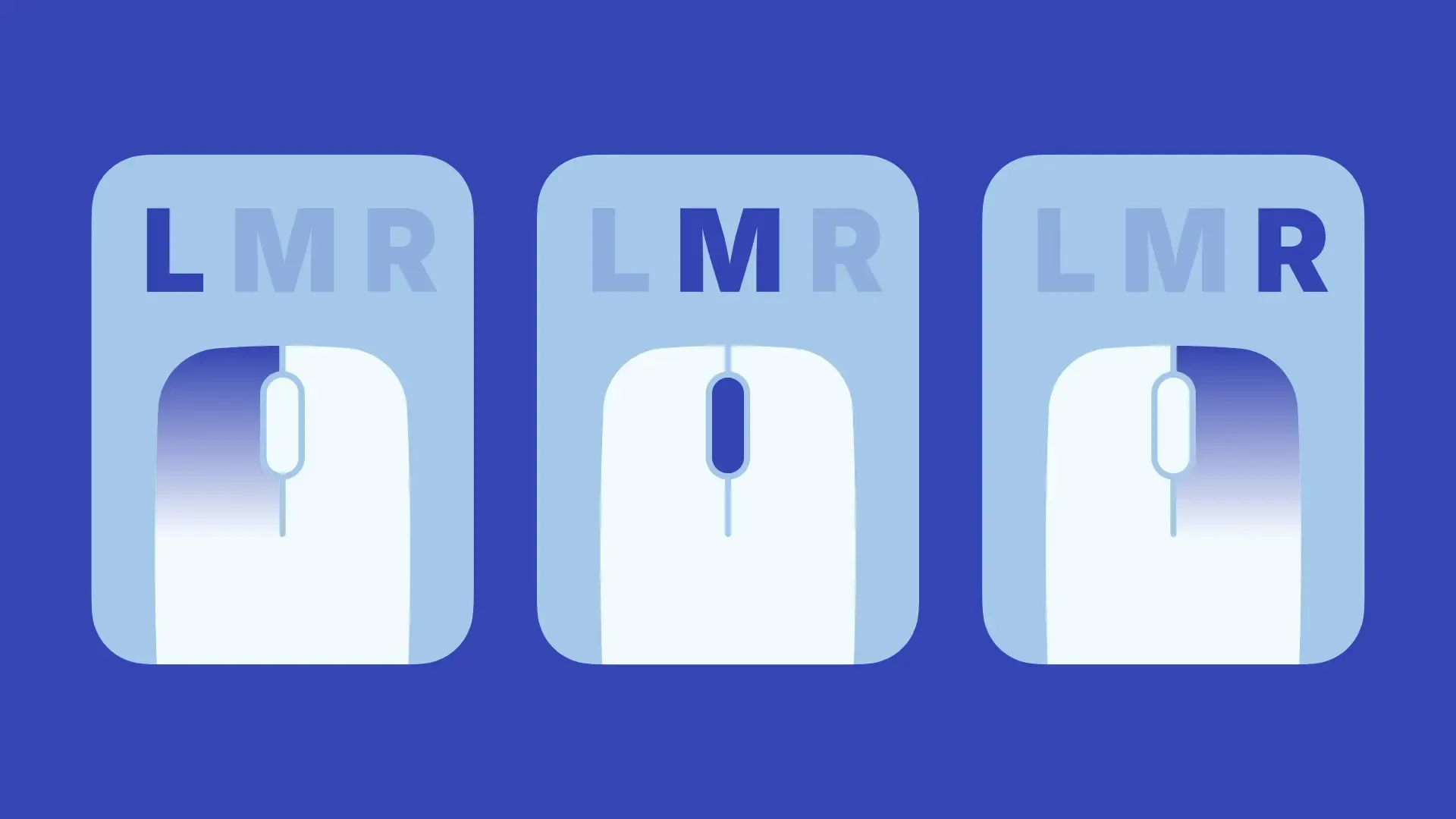
DragLocker supports locking of the left mouse button (Button 0), right mouse button (Button 1), and scroll wheel button (Button 2).
By default, only the left mouse button is targeted, but other buttons can also be set as targets for locking.
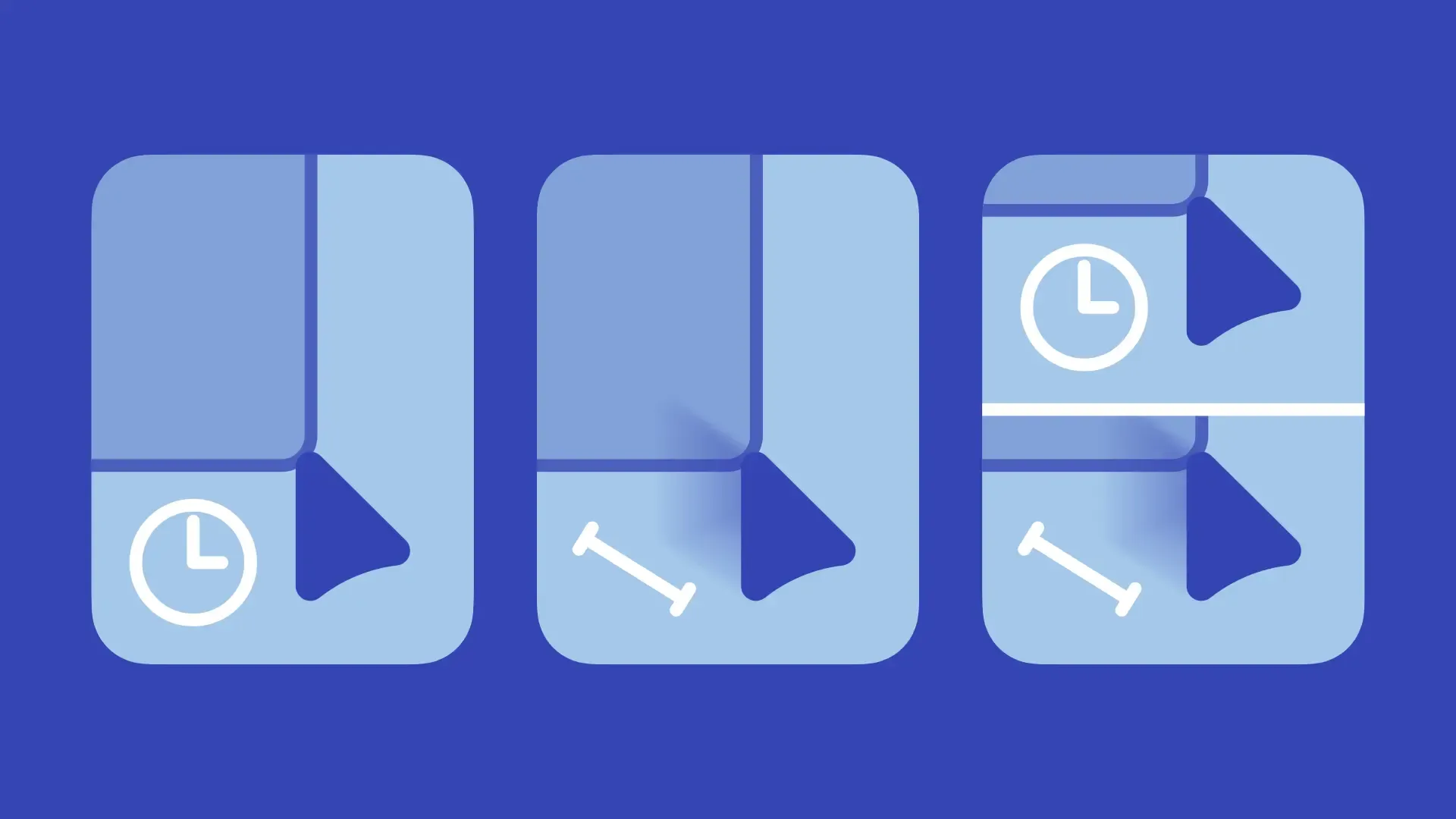
In DragLocker, you can select how to start drag lock from three options: "Time", "Distance", or "Both".
By default, "Time" is used to lock, but you can change the lock method to suit your preferences and usage.
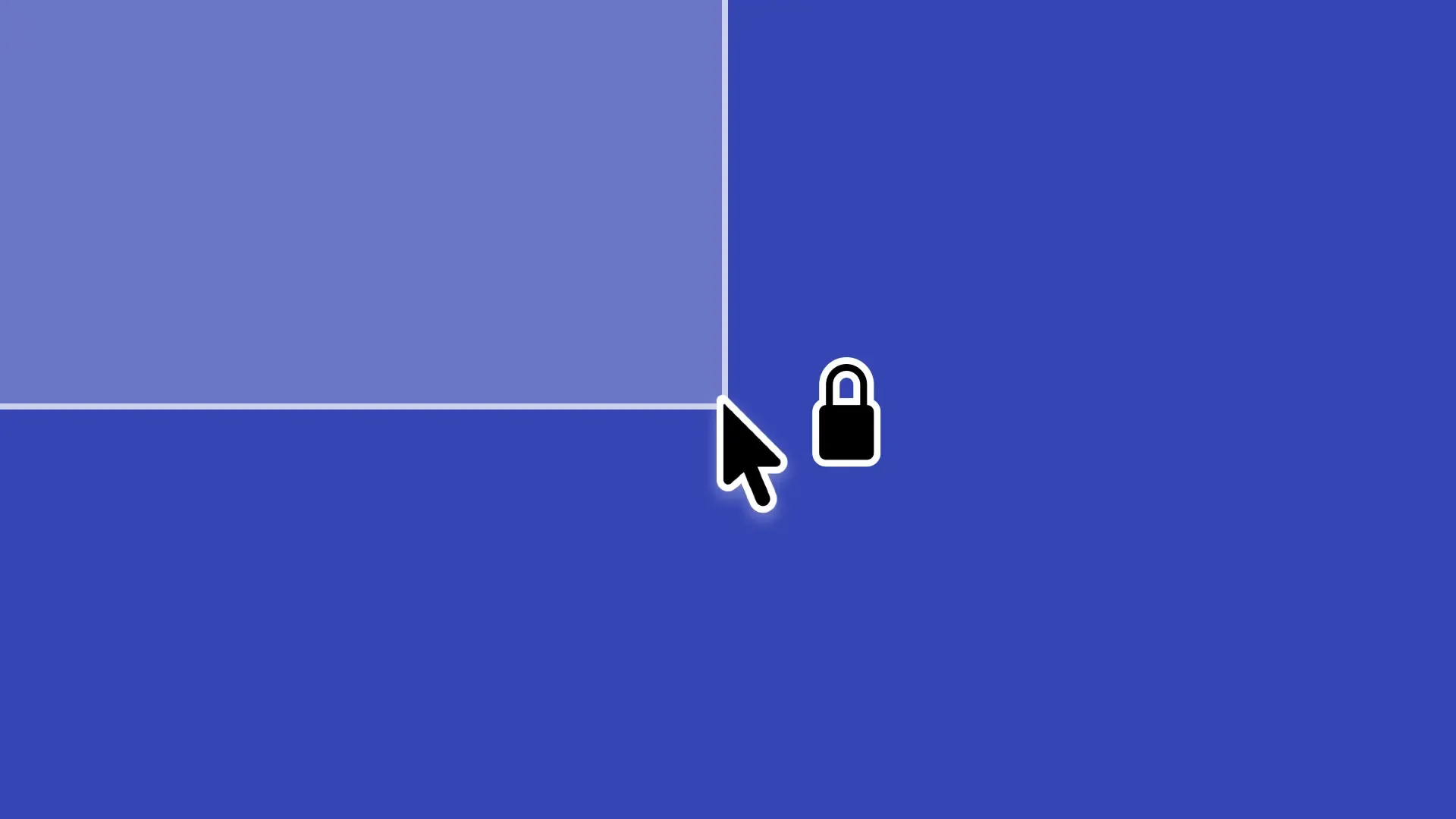
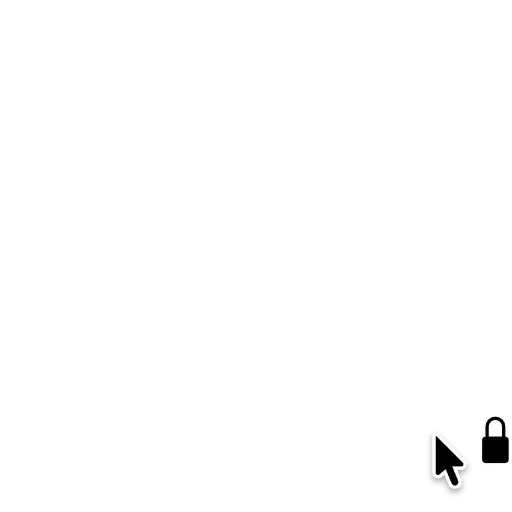
You can show an icon near the pointer when any mouse button is locked, or play a sound when it is locked or unlocked.
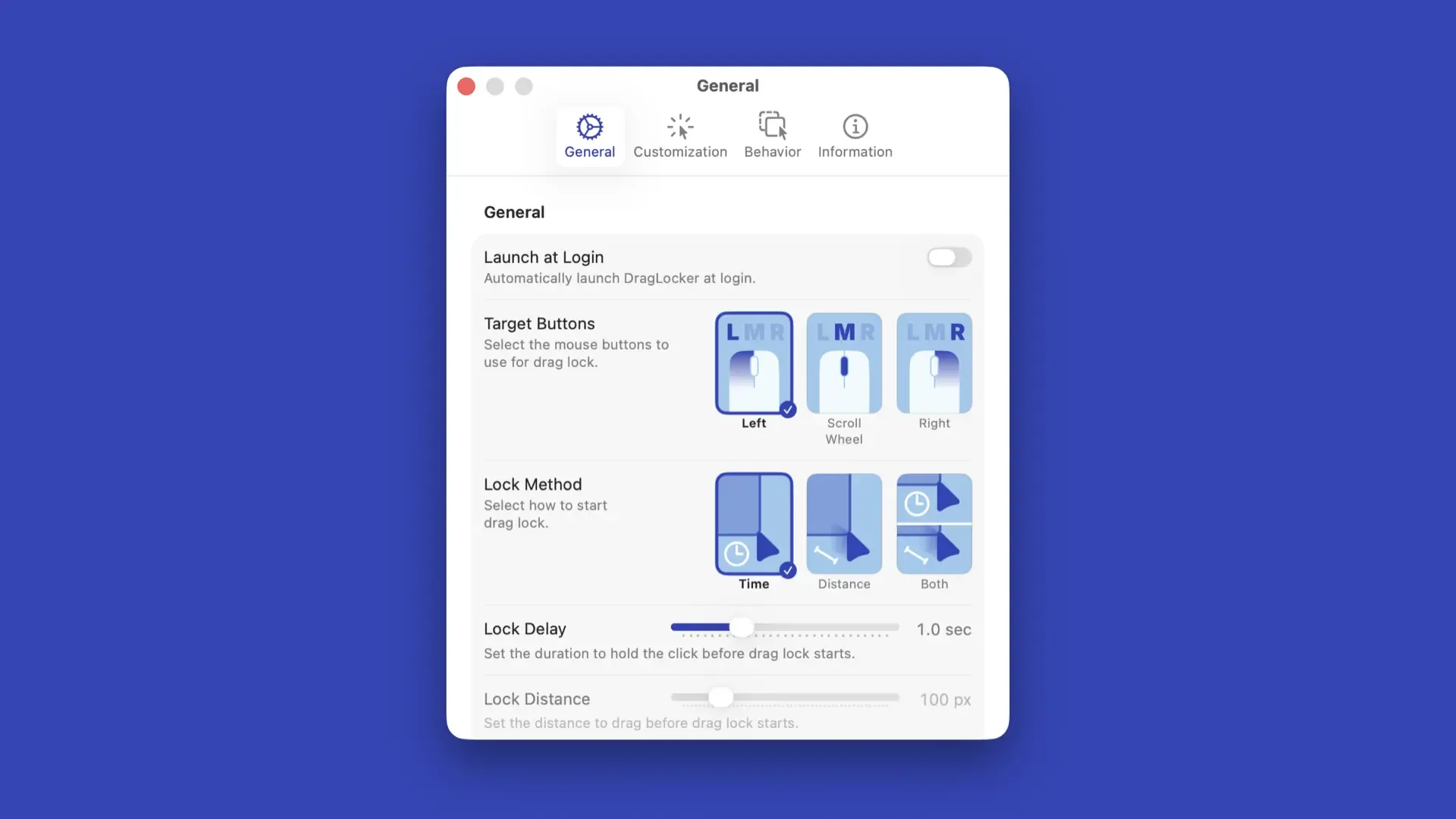
Basic drag lock settings can be configured in the General settings of DragLocker.
You can select the target buttons and the lock method by clicking the image buttons displayed on the right.
The target buttons are toggle buttons; you can select or deselect them by clicking the image buttons. Buttons you do not want to include for drag lock can be excluded by deselecting them.
You can also target multiple buttons (up to three). If you deselect all buttons, drag lock will be disabled for all mouse buttons, which results in a state similar to pausing drag lock.
You must choose one of these three lock methods. For information on how to use these methods, please refer to "Using Drag Lock".
"Lock Delay" sets the amount of time you need to hold down the mouse button before drag lock starts. This can be configured when the lock method is set to "Time" or "Both".
"Lock Distance" sets the distance you need to drag the mouse before drag lock starts. This can be configured when the lock method is set to "Distance" or "Both".
Settings for icon display and sound playback can be found in the "Customization" settings of DragLocker.
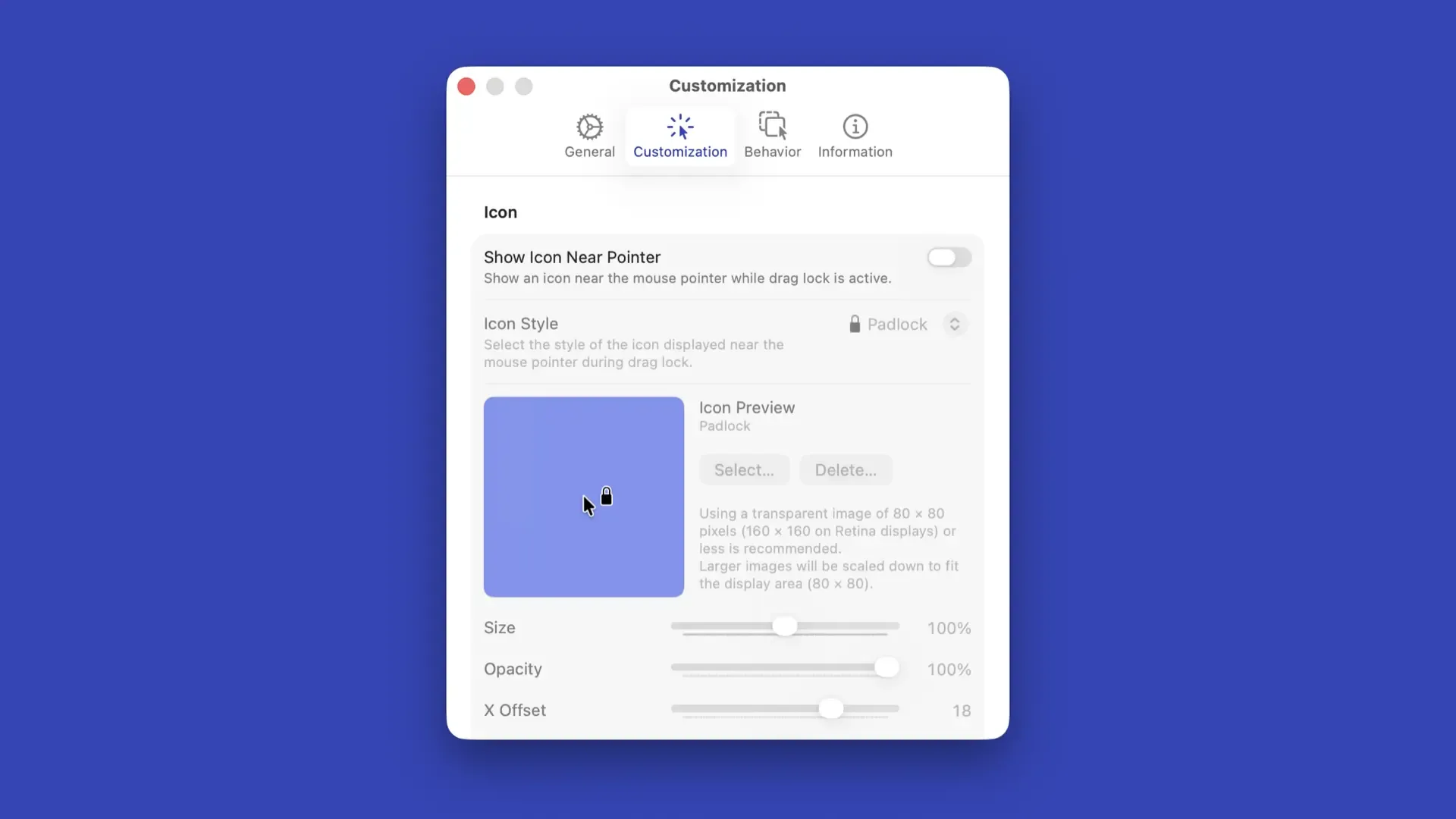
To show an icon near the pointer when any mouse button is locked, turn on "Show Icon Near Pointer". Once this setting is enabled, options related to the icon will become available.
From Icon Style, you can select the type of icon that appears near the pointer.
Icons in the "Single Indicator" section are displayed when one or more mouse buttons are locked. A single icon will be shown regardless of which mouse button is locked.
Icons in the "Multi-Indicator" section change their appearance based on which mouse buttons are locked. If you have multiple buttons set as targets, using these icons allows you to see at a glance which buttons are currently locked.
Note
Custom icons can only be configured for the Single Indicator.
Below the Icon Style, there is an Icon Preview where you can check and adjust the current icon settings, allowing you to customize while previewing the actual icon display.
In this section, you can adjust the icon's size, opacity, and offsets.
Below the Icon Preview, there are Animation settings where you can select the animation applied when the icon appears and disappears.
"Default" uses the animation pre-configured for each icon. You can change this to other animations based on your preference.
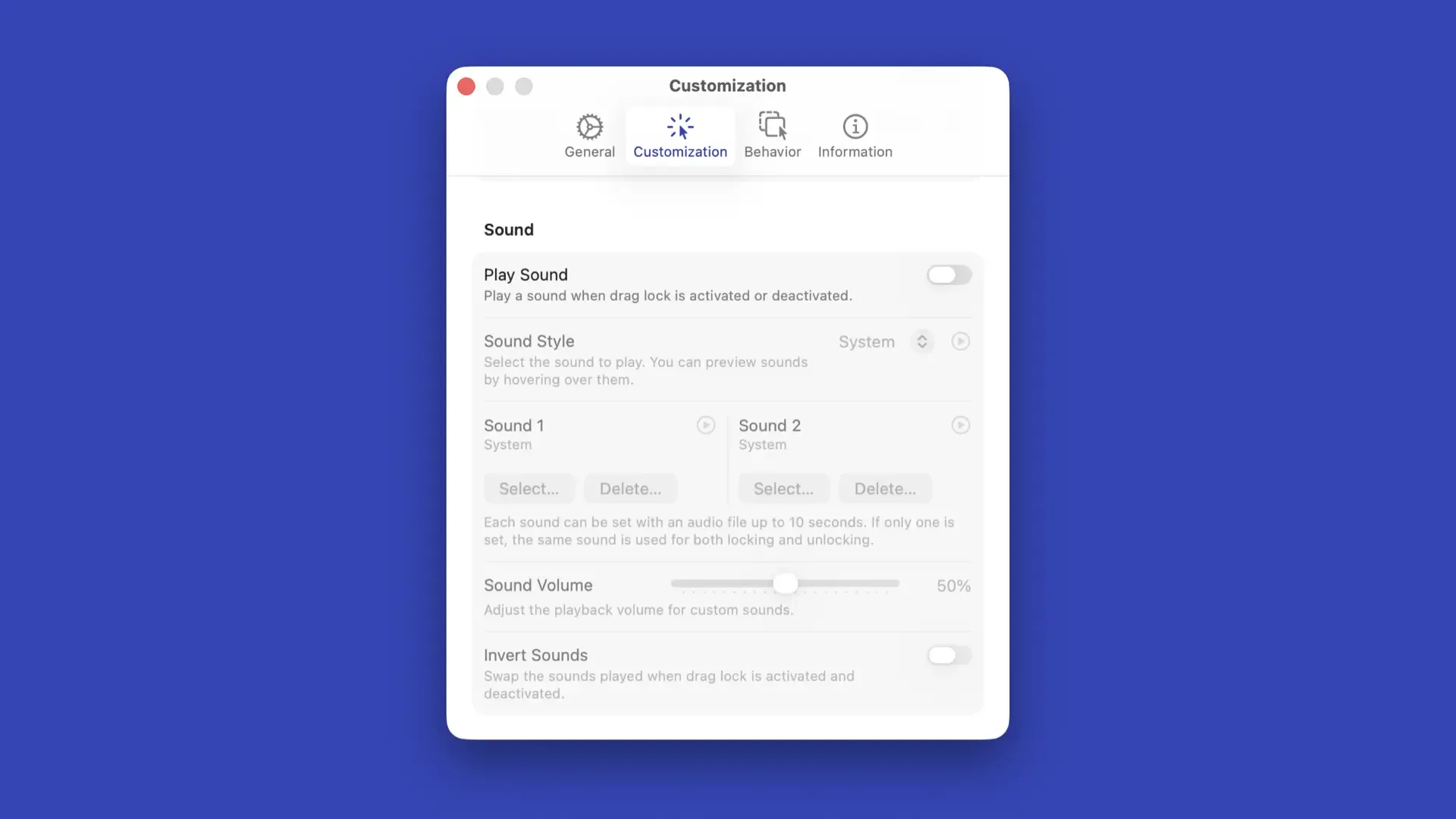
To play a sound when any mouse button is locked or unlocked, turn on "Play Sound". Once this setting is enabled, options related to sound will become available.
From Sound Style, you can select the type of sound to be played.
The available sound types include "System," which plays the system alert sound selected in System Settings, various sounds provided within the app, and "Custom," where you can select your own audio files.
You can preview a sound by clicking the preview button to the right of the picker or by hovering your mouse over the options.
Below the Sound Style, there is an area where you can check the current sounds one by one or select audio files.
If you want to change the volume of the sound, you can adjust it by moving the "Sound Volume" slider left or right. The default is set to 50%, but you can adjust it according to your environment or preference. This setting is available when a sound other than "System" is selected.
If you want to swap the sounds played when locking and unlocking, turn on "Invert Sounds". This setting is available when a sound other than "System" is selected.
In addition to the global settings, DragLocker allows you to customize behavior for specific applications.
For information on how to customize settings for each app, please refer to "Change Drag Lock Settings for Each App".


Copyright ©︎ 2026 Taiga Imaura


