

Document Home / Change Drag Lock Settings for Each App
From the "Behavior" settings in DragLocker, you can customize drag lock settings for each application.
From the DragLocker settings, you can exclude specific apps so that drag lock does not work in them, or conversely, limit drag lock so that it only works in specific apps.
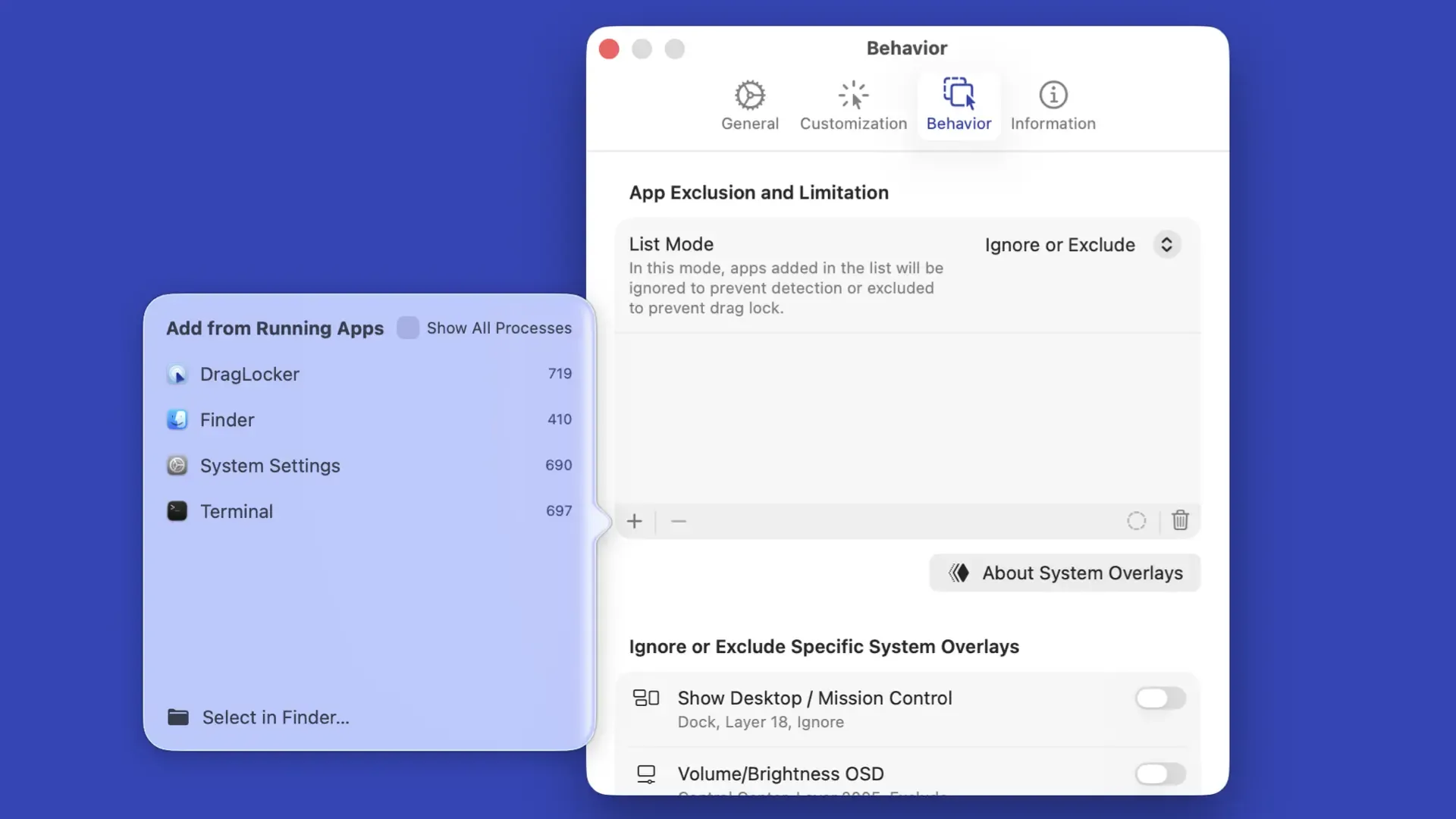
You can exclude specific apps or limit drag lock to certain apps from the "App Exclusion and Limitation" section in the Behavior settings.
The setting for whether to "Ignore or Exclude" or limit apps can be changed by toggling the "List Mode".
By default, it is set to "Ignore or Exclude" mode, and apps added to the list will be excluded from drag lock.
If you want to set an added app to be ignored, select the app and change its app mode to "Ignore" via the context menu or the bottom bar of the list.
Apps set to be excluded are configured so that drag lock will not activate even if a mouse button is pressed while using that app.
This is useful when you want to operate a specific app in the same way as when you are not using DragLocker.
Apps set to be ignored will have their presence disregarded when a mouse button is pressed; instead, the app immediately beneath it will be detected.
If you are using an overlay app that covers the entire screen, ignoring that app allows other apps underneath to be correctly detected (ensuring per-app settings are properly applied). For example, if an overlay app is transparent, this prevents it from being accidentally detected regardless of where you click.
In DragLocker, you can not only exclude or limit apps but also customize drag lock settings for each individual application.
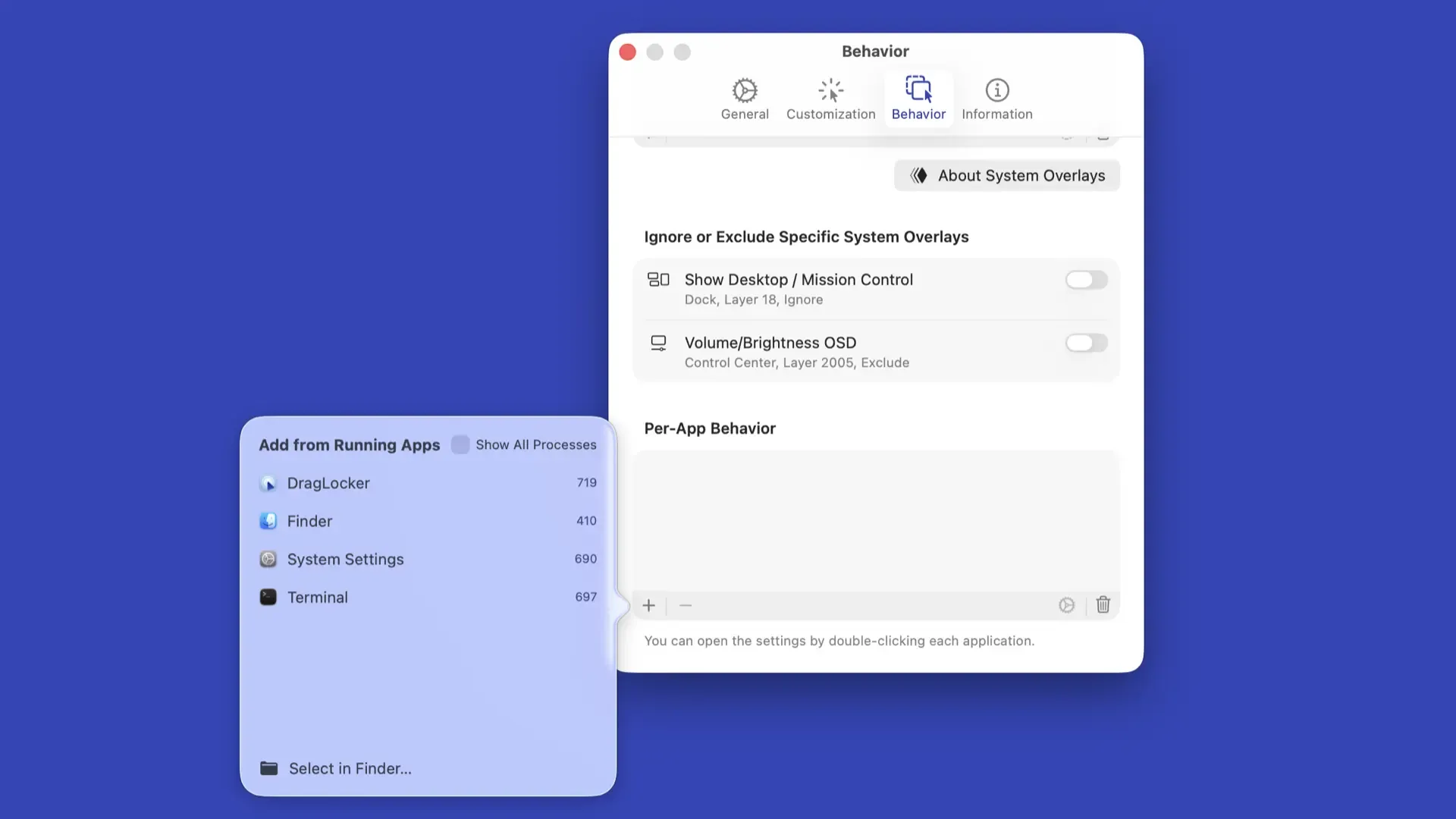
You can add per-app customizations from the "Per-App Behavior" section in the Behavior settings.
To customize an application, first add the application you want to customize to the list.
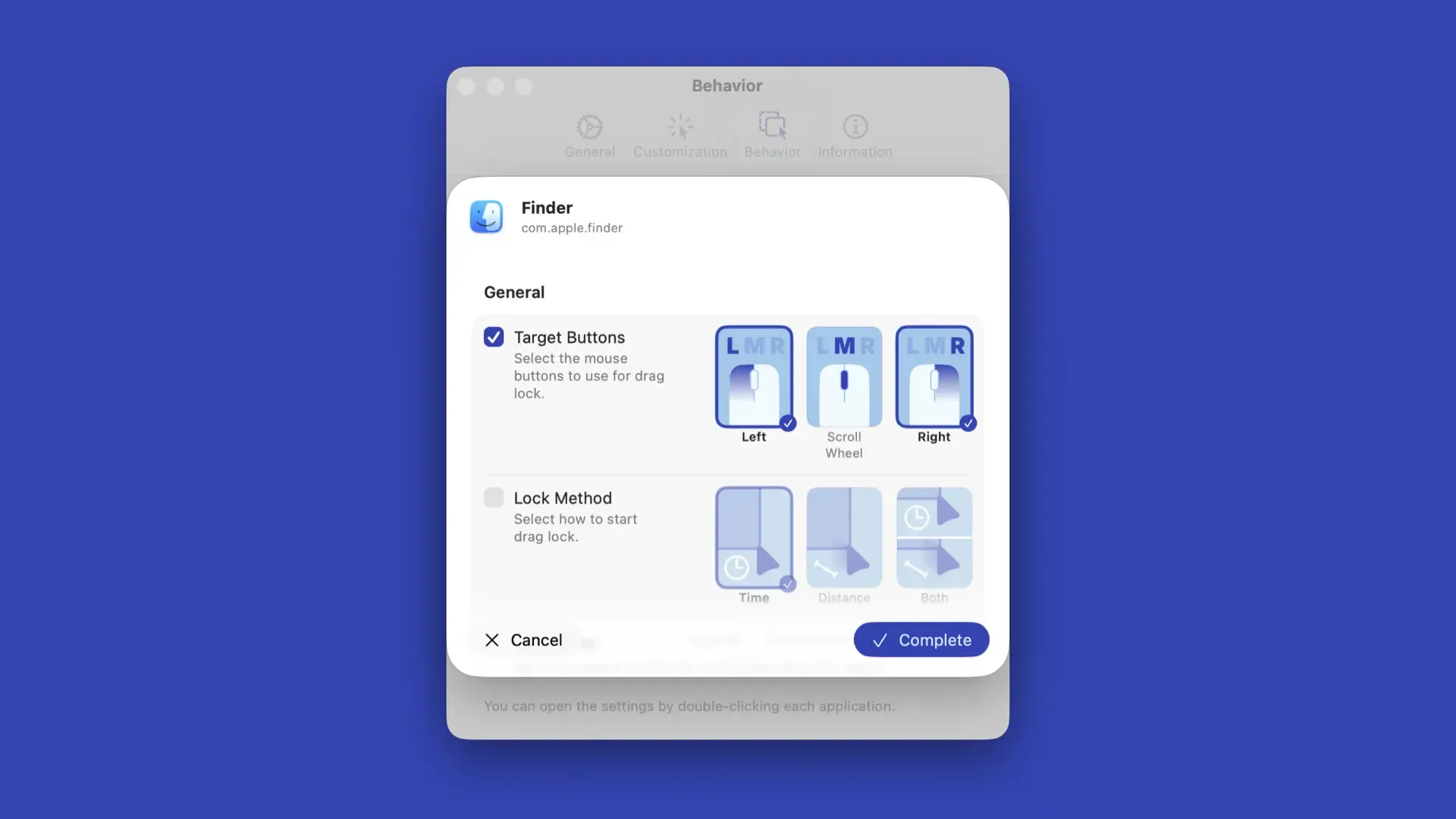
Once you have added the application you want to customize to the list, you can open its settings by double-clicking the added application.
Each setting has a checkbox; by turning it on, you can override the global settings and apply custom settings. After customizing, press the "Complete" button at the bottom right to save the settings, and the customized configuration will become available for that application.
Information
While you can set a custom icon or custom sound, you cannot specify image or audio files directly from this screen.
If you wish to use a custom icon or custom sound, you must first select the file in the global settings (the selected custom file will be maintained even if you switch back to a different icon or sound in the global settings).


Copyright ©︎ 2026 Taiga Imaura


