


Document Home / Using Drag Lock
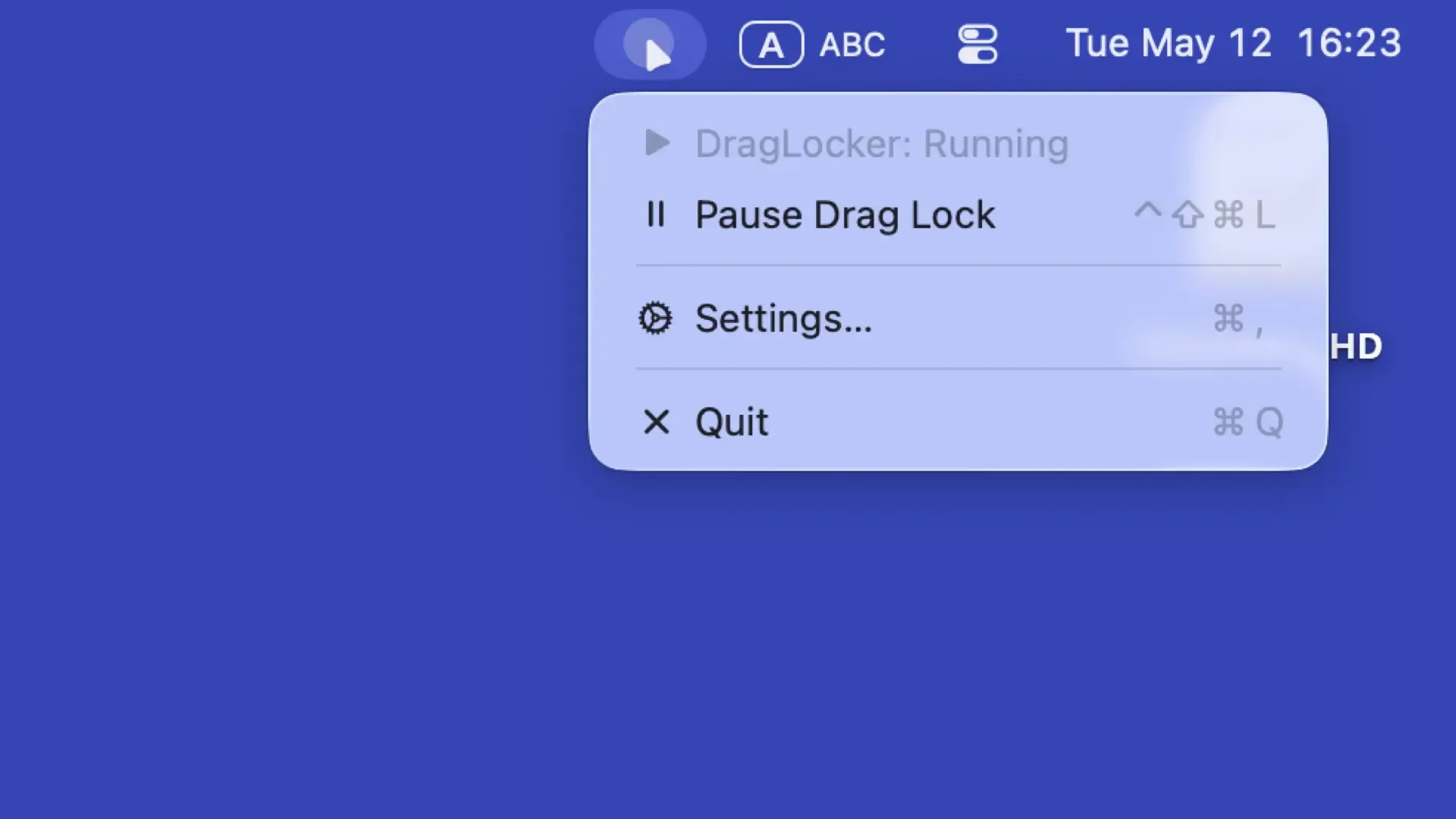
Checking the DragLocker menu, ensure that drag lock is active and that the mouse buttons you wish to lock are enabled in the settings (the left mouse button is enabled by default).
For information on how to configure mouse buttons, please refer to "Customize Drag Lock Behavior" and "Settings".
By default, you can use the "Time" method to activate drag lock.
In this case, you can lock the button by holding down the target mouse button for a set duration (default is 1 second). Once locked, even if you release the mouse button, the system will maintain the "pressed" state.
To release the drag lock, simply press the locked mouse button again.
Tip
If "Unlock All with Esc Key" is turned on in the settings (default), you can unlock all currently locked mouse buttons by pressing the Esc key.
By changing the settings, you can use the "Distance" method to activate drag lock.
In this case, you can lock the button by moving the mouse a set distance (default is 100 px) while holding down the target mouse button. Once locked, even if you release the mouse button, the system will maintain the "pressed" state.
To release the drag lock, simply press the locked mouse button again.
Tip
If "Unlock All with Esc Key" is turned on in the settings (default), you can unlock all currently locked mouse buttons by pressing the Esc key.
When "Both" is selected, it combines the two methods described above. In this mode, the button will be locked whenever either the set time or the set distance condition is met first.

When any mouse button is in a locked state, the DragLocker icon in the menu bar changes to one with a border around it, as shown in this image.
Information
From DragLocker settings, you can display an icon near the pointer during drag lock or play a sound when locking or unlocking. For more details on these settings, please refer to "Customize Drag Lock Behavior".

As shown here, if the DragLocker icon in the menu bar is translucent, drag lock is in a paused or stopped state. If it can be resumed, you can enable the drag lock feature by selecting resume from the menu or by using the toggle shortcut (default is ^ (Control) + ⇧ (Shift) + ⌘ (Command) + L).
If it cannot be resumed, it is because Accessibility permission has not been granted to DragLocker; you will be able to resume by granting permission in System Settings.
Note
If you are prompted for permission even though DragLocker's Accessibility permission is already turned on in System Settings, you must remove DragLocker from the Accessibility permission list in System Settings, add it back, and then turn it on.This can happen if the app's path has changed, such as when the app is updated or moved to a different folder.
If drag lock is enabled but does not work, the intended app may be excluded in the settings or not included in the limited list.
For information on per-app settings, please refer to "Change Drag Lock Settings for Each App" and "Settings".




Copyright ©︎ 2026 Taiga Imaura


